An account holds your purchases, licences, invitations and reports. The same account works whether you buy questionnaires for a team or complete one you were invited to.
Open the site and select Signup (top right).
Enter your first name, last name, email address and a password, accept the terms of use and select Signup.
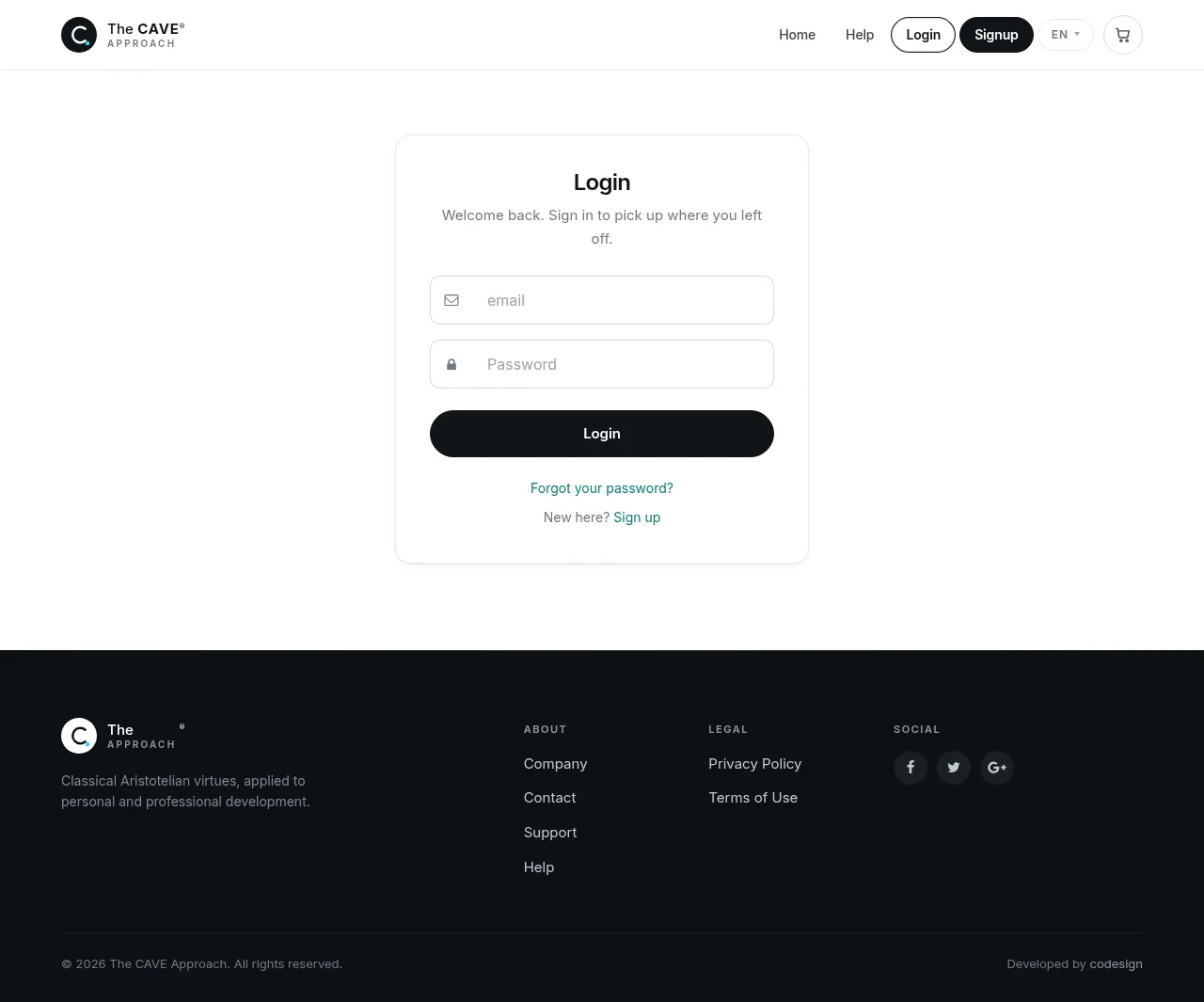
Already registered? Select Login and enter your email and password.
Forgot your password? Select Forgot your password?, enter your email and open the link we send you. The link is valid for 60 minutes.
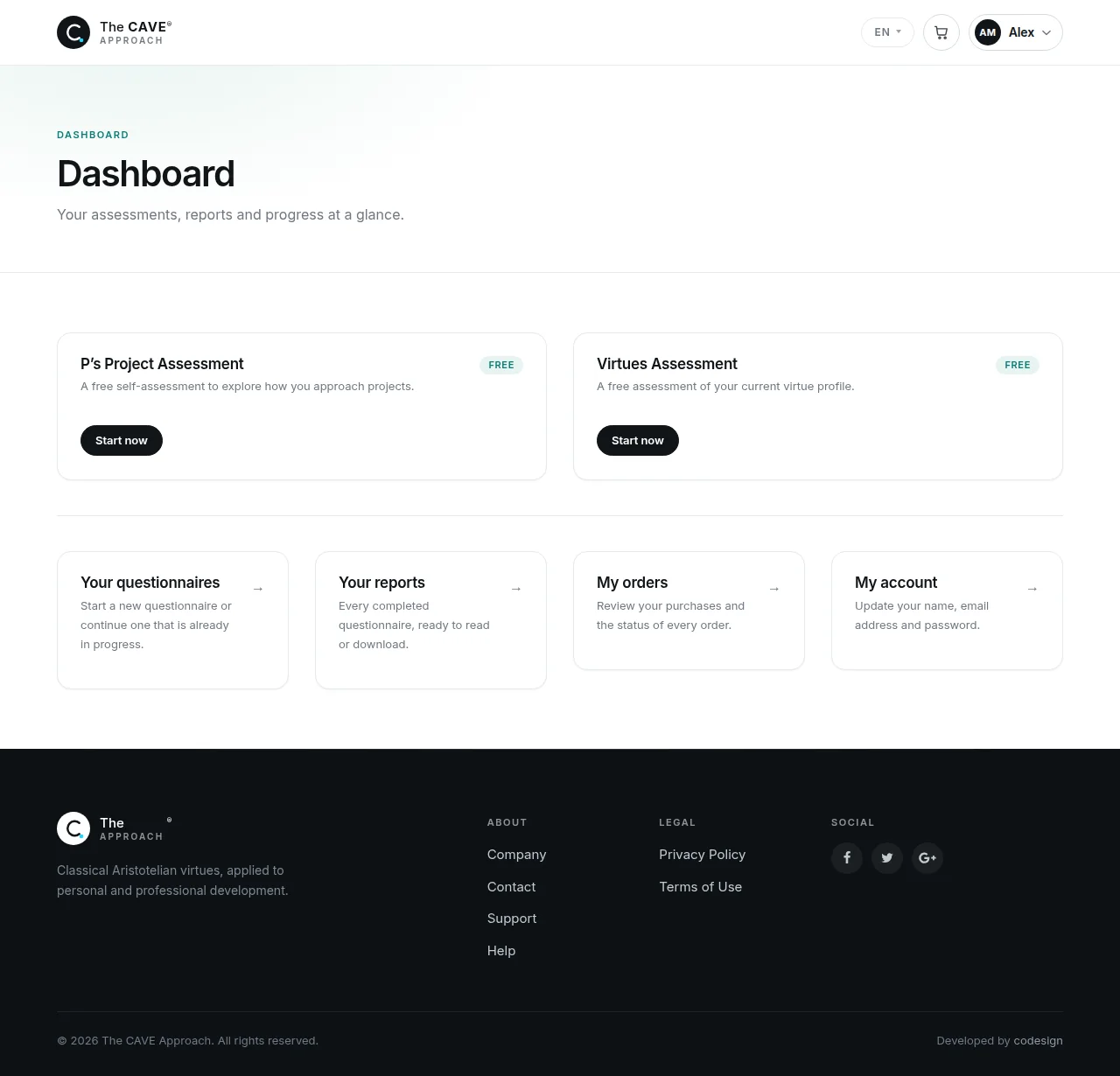
The login page. New visitors can create an account from the Signup link.After signing in you land on your dashboard, with shortcuts to your questionnaires, reports, orders and account.
Use an email address you can access: receipts, invitations and report notifications are sent there. If you were invited to a questionnaire, register with the email the invitation was sent to (see section 10).
02
Buy a questionnaire
Questionnaires are sold per person. One licence gives one report for one named person, and you decide whether you complete that report yourself or invite someone else to do it.
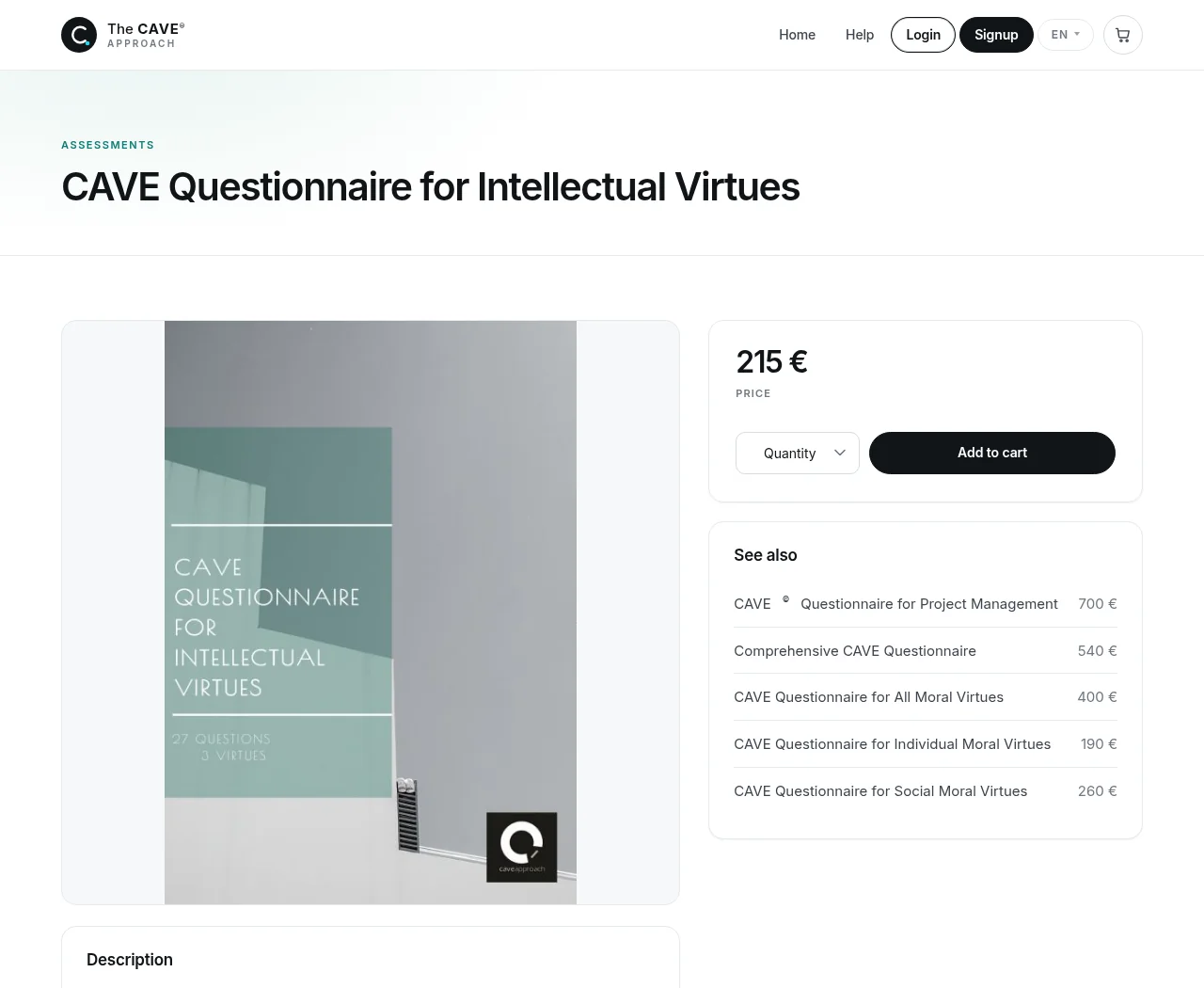
Open the questionnaire from the home page or the questionnaires list. Each product page explains what the report covers.
Set Quantity to the number of people you want to assess. A team of eight needs eight licences.
Select Add to cart, review the cart and continue to checkout.
Pay with PayPal or choose Bank transfer. A bank-transfer order stays at Pending payment until we confirm it.
When the payment is confirmed, the licences appear under My Questionnaires. You can buy more at any time; licences add up.
Choose the number of licences in Quantity, then add the questionnaire to the cart.
You do not need a licence for every report you read: a purchaser can open the reports of everyone they invited.
03
Open your questionnaires
My Questionnaires is the control panel for everything you have bought.
Sign in and open the account menu (your name, top right), then select My Questionnaires.
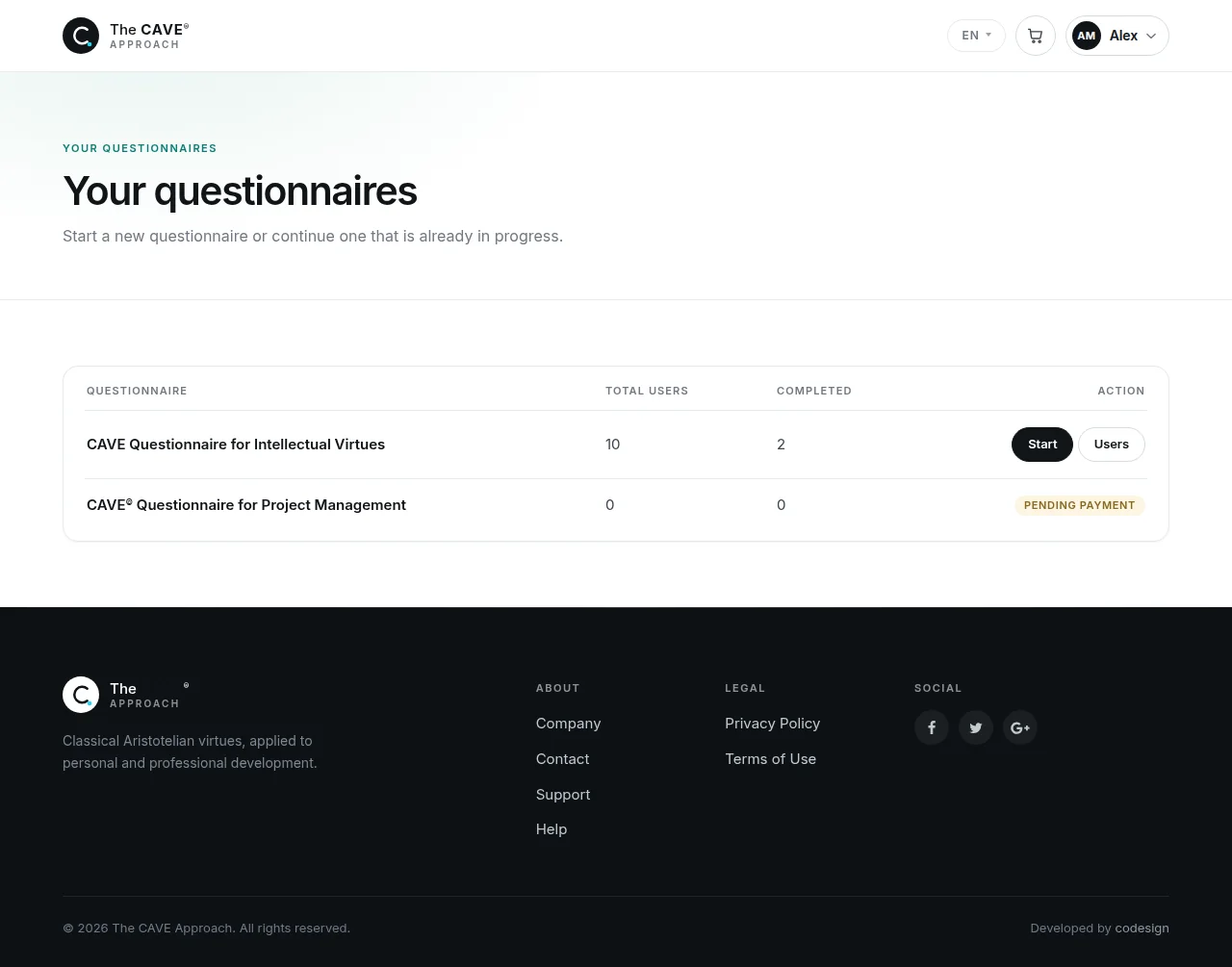
Each row is one questionnaire. Total users counts the people who have an account; Completed counts the finished reports.
Start begins the questionnaire for you. You can stop and continue later.
Users opens the list of people, pending invitations and reports for that questionnaire.
A Pending payment badge means the order is not confirmed yet.
Every purchased questionnaire with its users, completed reports and actions.
04
Invite people to complete a questionnaire
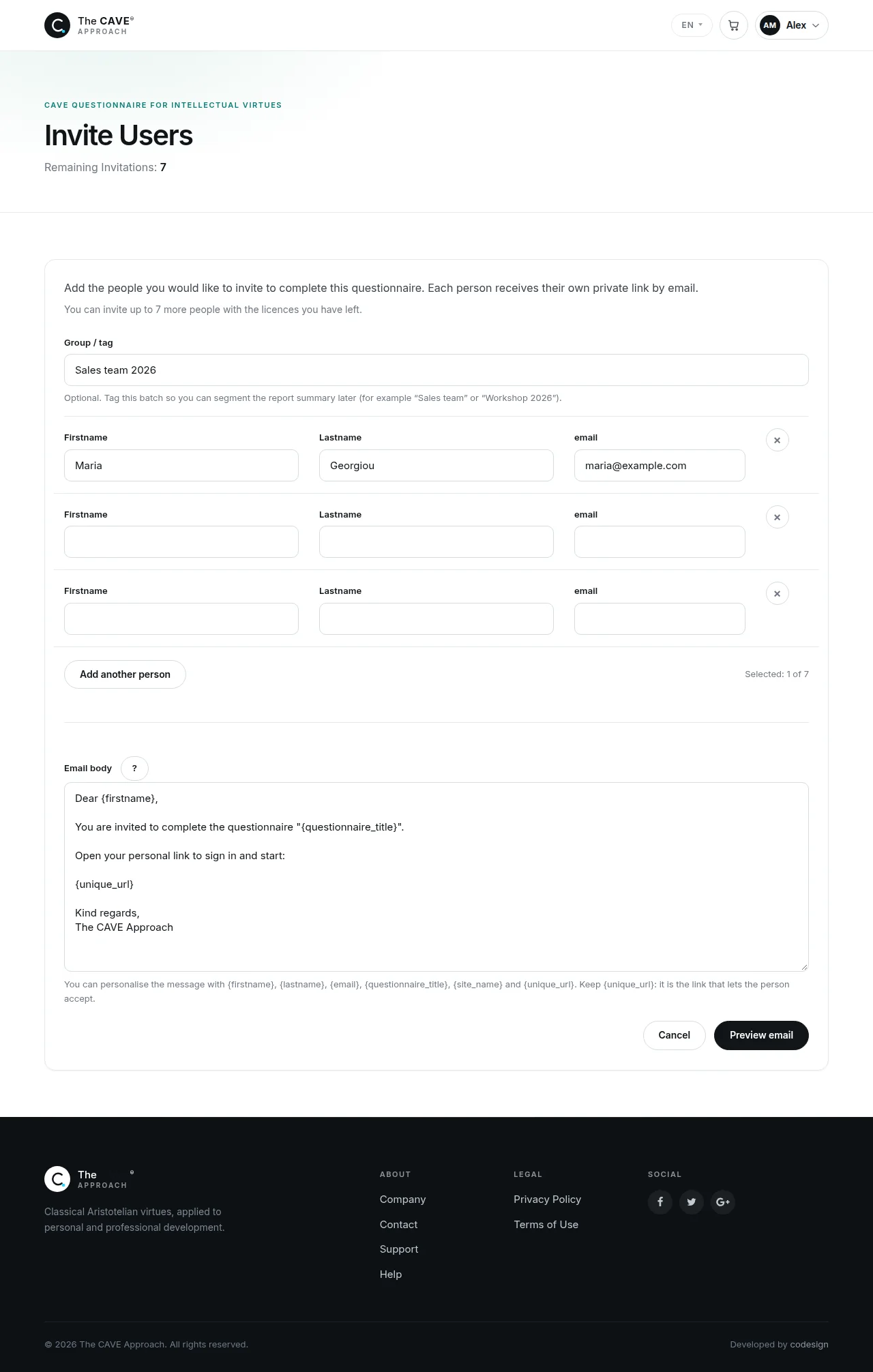
As the purchaser you can invite people by email. Each invitation reserves one of your licences and sends the person a private link.
In My Questionnaires, select Users next to the questionnaire, then Invite Users.
Optional: give the batch a Group / tag, for example “Sales team 2026”. You can compare results by tag later.
Fill one row per person: first name, last name and email. Use Add another person for more rows and × to remove one. The counter shows how many of your remaining licences you are using.
Edit the Email body if you like. Keep the {unique_url} placeholder: it becomes each person's private link. You can also use {firstname}, {lastname}, {email}, {questionnaire_title} and {site_name}.
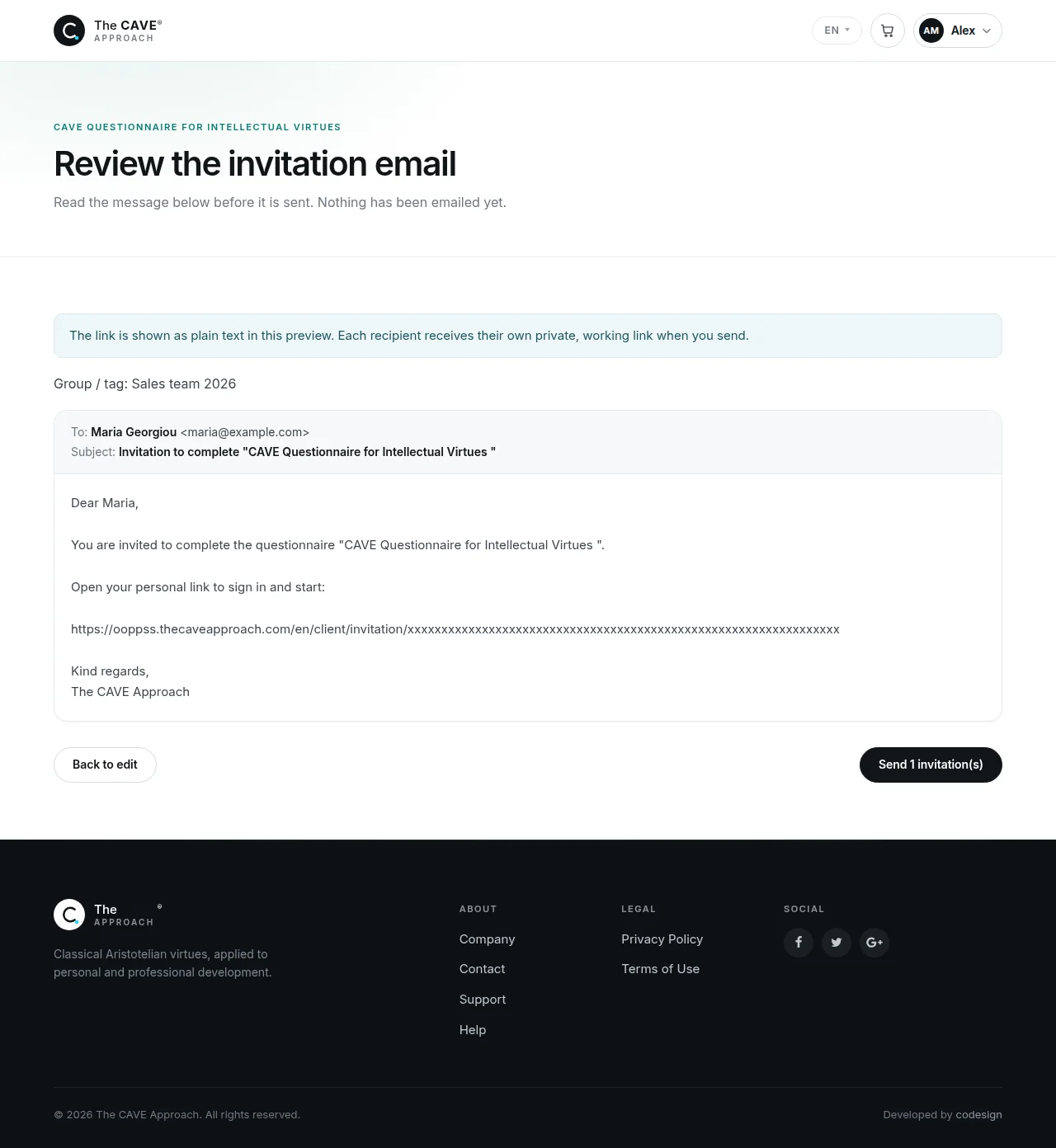
Select Preview email and check every recipient and message. Nothing has been sent at this point.
Select Send invitation(s). Each person receives an email with their own link.
One row per person, an optional tag for the batch, and the email body.The preview shows the exact message each person will receive. Nothing is sent until you confirm.
An invitation is valid for 30 days. If you resend it, the previous link stops working; cancelling it frees the licence immediately.
05
Track progress, resend or cancel
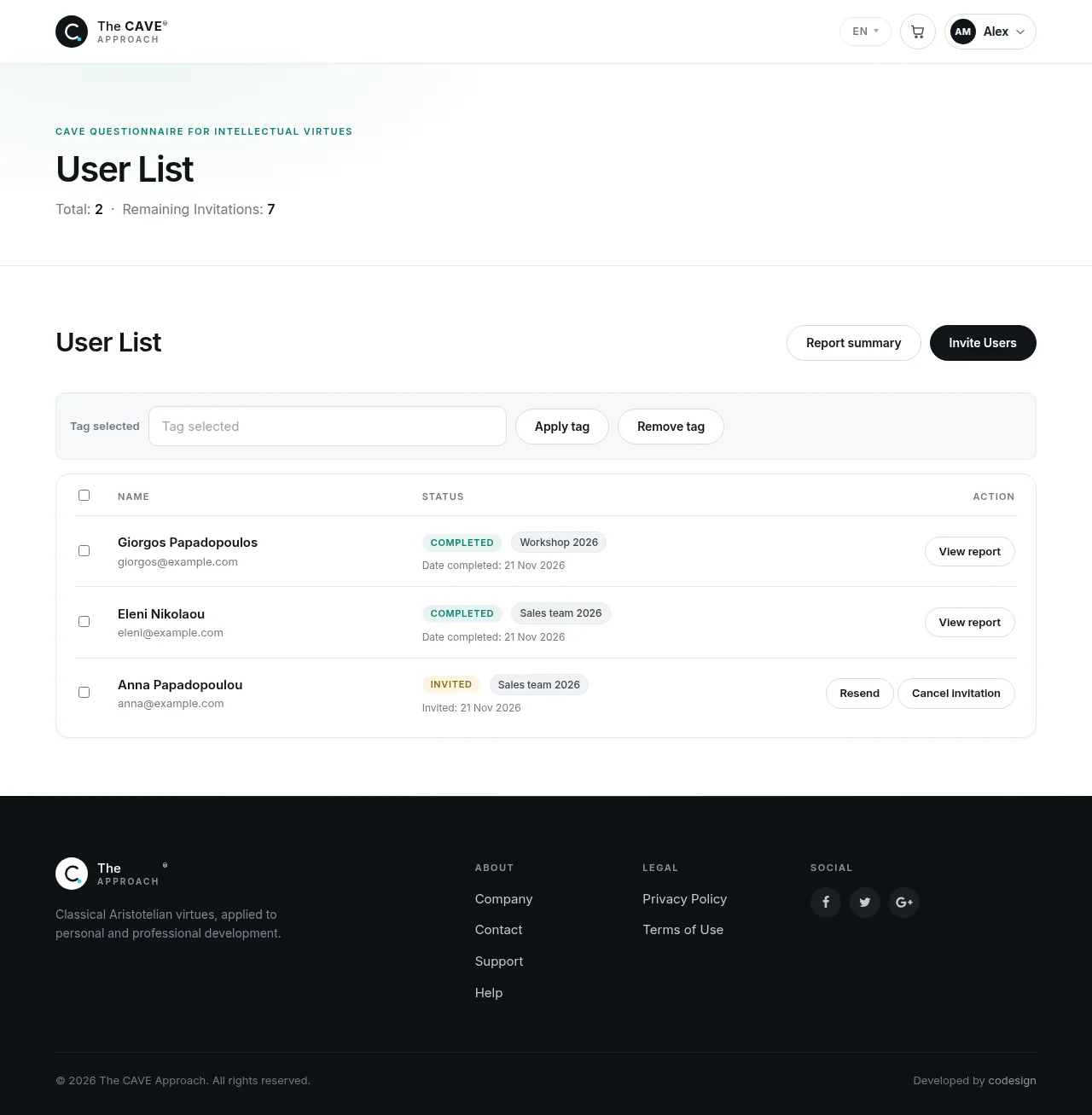
The user list shows who has been invited and what they have done so far.
Open My Questionnaires → Users.
Read the status: Invited (email sent, not accepted yet), Accepted (account created), In progress (started but not finished) and Completed (report ready).
The tag chip next to a name shows its group; the completion date appears under the status.
For a completed report select View report.
For a pending invitation use Resend to send a fresh link, or Cancel invitation to withdraw it.
The page header shows Total users and Remaining Invitations (free licences).
Completed people, pending invitations, tags and the actions available for each.
06
Segment results with tags
Tags group people so that the report summary can compare teams, departments, cohorts or workshops.
Set the tag when you invite a batch: one tag applies to everyone in that batch.
To tag later, tick the people or invitations in Users, type a name in Tag selected and select Apply tag. Remove tag clears it.
Reuse the same tag name for comparable groups; earlier tags are suggested as you type.
Tags travel with the licence, so a completed report stays in its group.
People without a tag are summarised as “Untagged”. Tags are plain labels rather than folders: to rename one, select the people again and apply the new name.
07
View an individual report
Every completed questionnaire produces a personal report with virtue scores and written feedback.
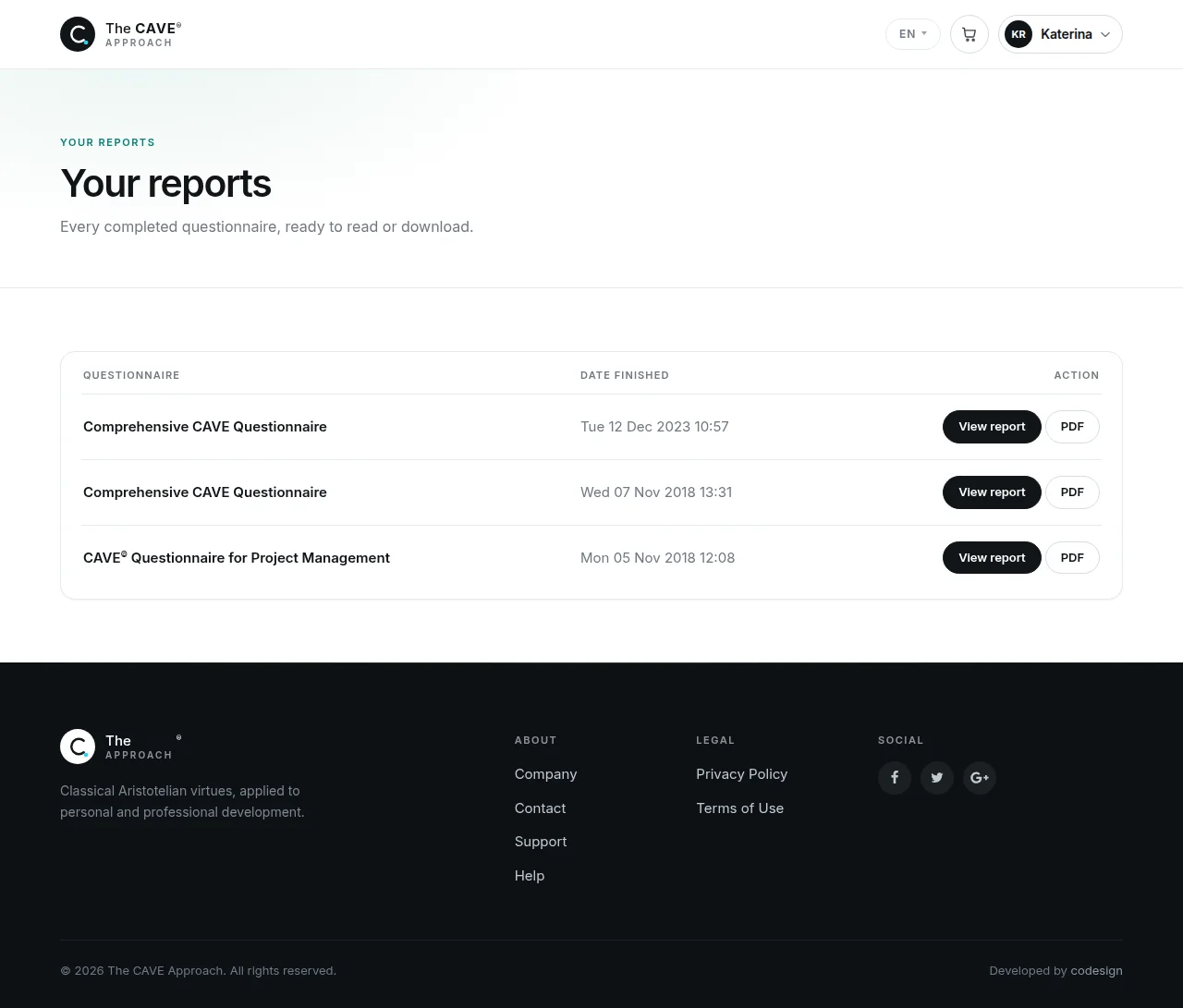
A person who completes their own questionnaire finds it under My Reports in the account menu.
As a purchaser, open My Questionnaires → Users and select View report next to a completed person.
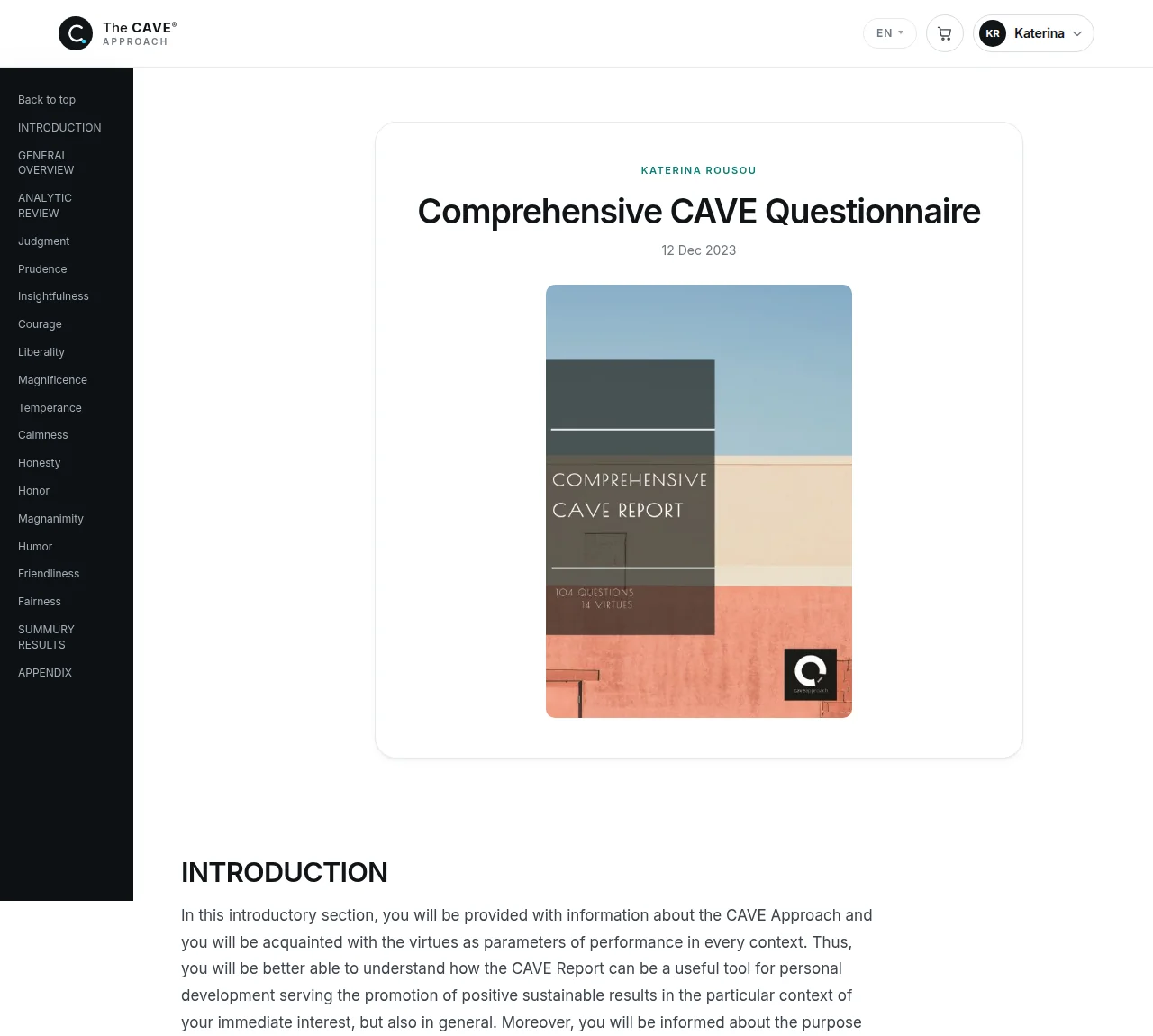
The report opens with a contents sidebar: Introduction, General overview, Analytic review of each virtue, Summary results and Appendix.
Select PDF to open the print-ready version, so you can save it or send it to the person.
My Reports lists your own completed questionnaires, with a view and a PDF button.A report opens with its contents on the left and the cover and introduction on the right.
08
Read the group summary
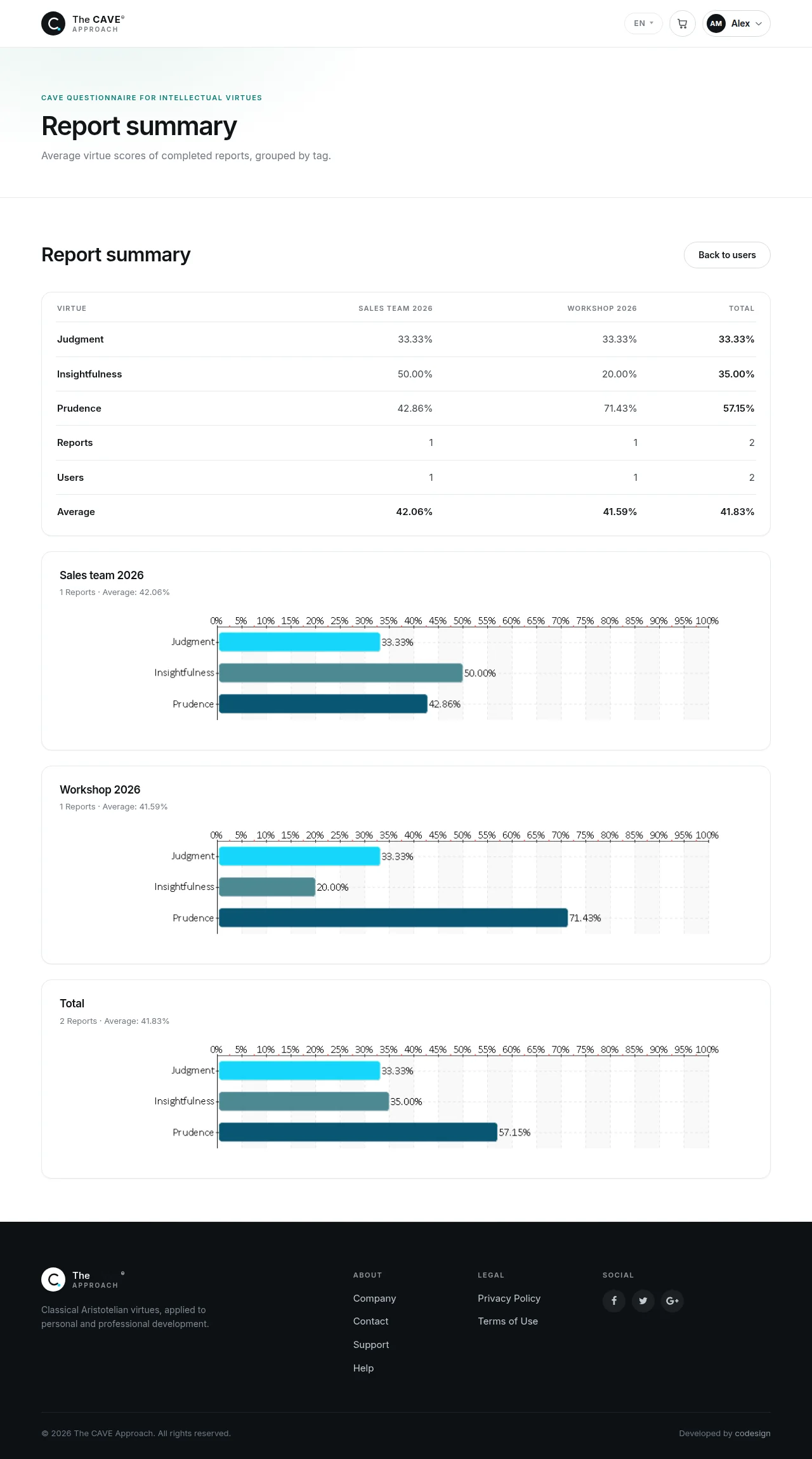
The report summary averages completed reports, separately for each tag and overall.
Open My Questionnaires → Users and select Report summary. The button appears once at least one report is completed.
The table lists each virtue as a row and each tag as a column, followed by Reports, Users and Average rows.
Below the table there is one bar chart per tag plus a Total chart, using the same virtue colours as the individual reports.
Select a chart to open it at full size; select Back to users to return.
Averages per tag and in total, with one chart per group.
Only completed reports count. A tag with a single report shows that person's scores; Total averages everyone, tagged or not.
09
Account, orders and emails
Keep your details current so that receipts, invitations and report notifications reach you.
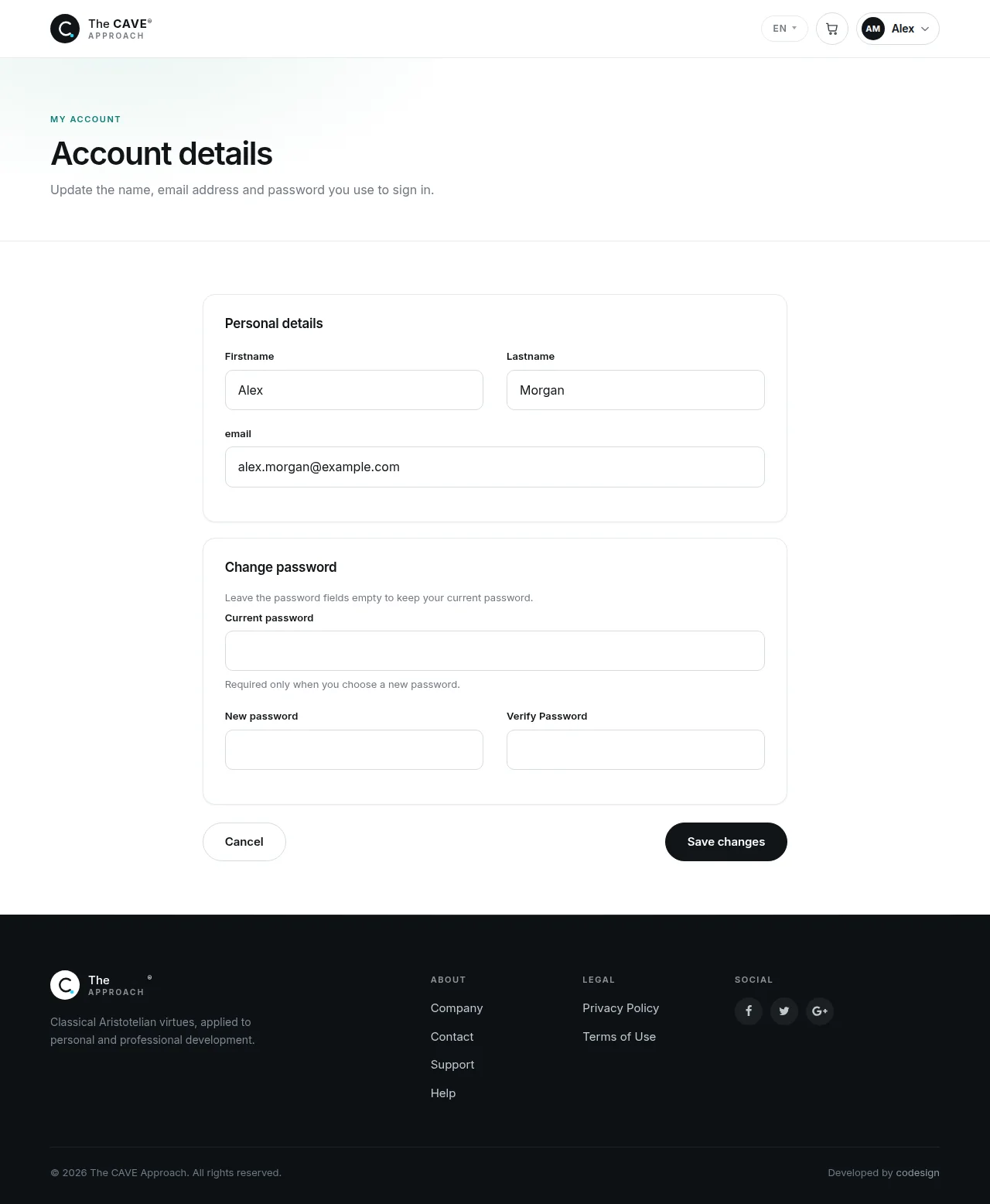
My account: change your name, email or password. Leave the password fields empty to keep your current password; a new password requires the current one.
My Orders: see every order, its status and its items. Bank-transfer orders stay pending until confirmed.
We email you about signup, orders, receipts, invitations, password changes and completed reports. If a message is missing, check the spam folder and confirm your address in My account.
Password reminder: use Forgot your password? on the login page. The link is single-use and expires after 60 minutes.
Account details: update your name and email, or set a new password.
10
If you were invited
You do not need to buy anything. The person who invited you has already reserved a licence for you.
Open the private link in the invitation email. It is unique to you, so please do not forward it.
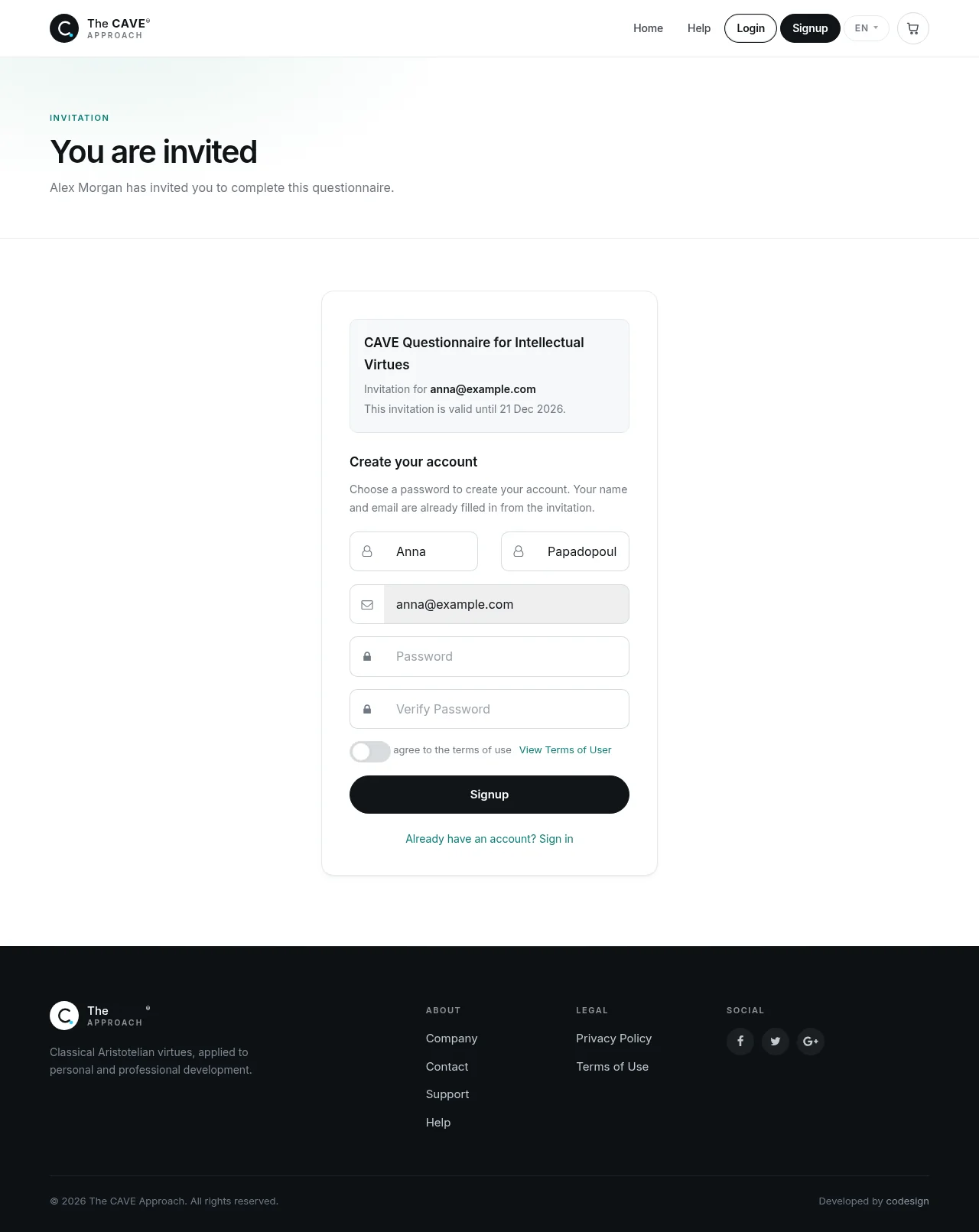
New here? The form is prefilled with your name and email. Choose a password, accept the terms and select Signup.
Already have an account? Select Sign in and use the email address the invitation was sent to.
If the page says the invitation belongs to another address, sign out and sign in (or register) with the invited email.
Select Accept invitation, answer the profile questions and start the questionnaire. Your answers are saved as you go, so you can continue later from My Questionnaires.
When you finish, your report appears under My Reports: open it or download the PDF.
The invitation page: create an account with the invited email, then accept the invitation.
The link is valid for 30 days. If it has expired, ask the person who invited you to resend the invitation.